

















Are you experiencing a problem with our checkout page? Please see these tips below for help with some common problems we see.
Please note that these instructions only apply to our domestic (USA) checkout. If you have selected a country outside of the United States, your checkout experience will appear different.
- My Card Has Been Declined or Rejected
- I Entered My Address, But the Shipping and Payment Form Doesn’t Work
- The Shipping Form Loads, but the Credit Card Fields are Missing
- I’ve Tried Refreshing/Reloading the Page, But I’m Still Having a Problem
- Try a Different Browser or Device
- Clear Your Browser Cache
- Checkout as a Guest Using PayPal
- Disable Your Ad Blocker
- iPhone / iPad-Specific Trick
- Still Having Problems? We Can Take Your Order By Phone!
My Card Has Been Declined or Rejected
If you submit the form and you receive a message saying that your payment has failed, been rejected, or declined, please check that your address information is correct and matches the payment method you’re using. Sometimes a credit card can fail if the name or address information is incorrect, even in cases where it might be almost correct, or another valid address or name that you use or have previously used. How strict a payment processor is about address verification can vary from website to website, so it’s possible that your information fails to validate even if the same information works on a different website.
If you’re sure that the payment information matches your card, you might try a different card. You can also call us directly to place your order over the phone.
I Entered My Address, But the Shipping and Payment Form Doesn’t Work
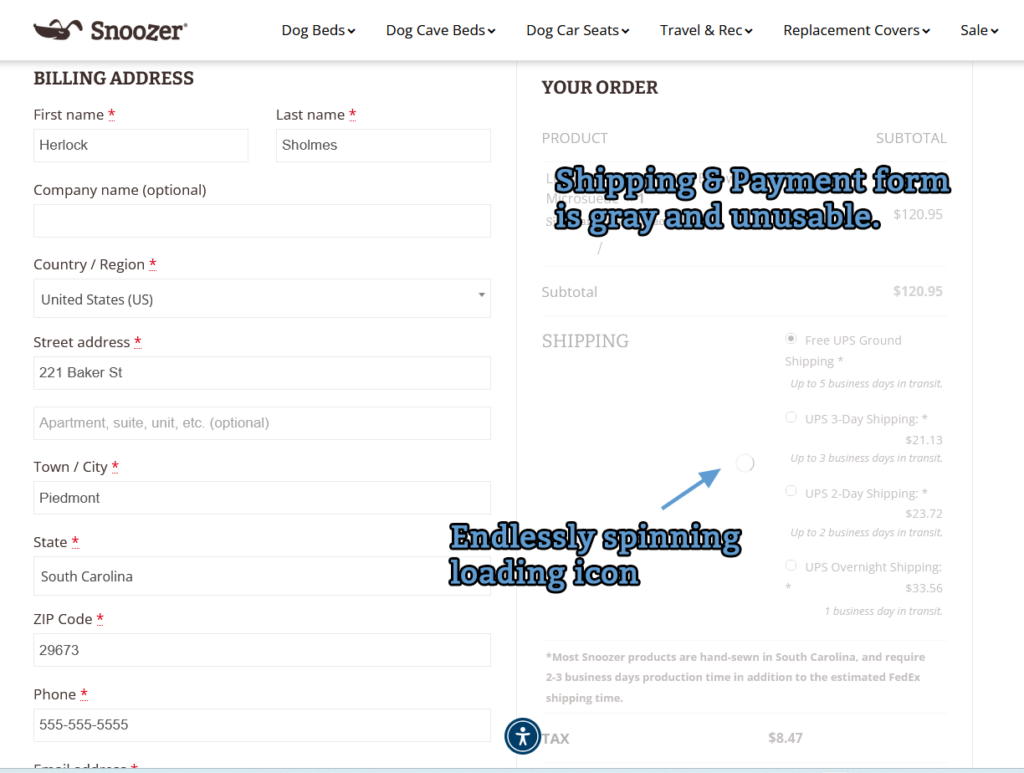
When you enter your address, the shipping and payment part of the form will reload to ensure that you have the correct options. For example, we can only ship to the USA Armed Forces using USPS, so the form will reload to ensure those are the only options you see if that applies to your address. If that part of the form fails to reload, you may see it turn faint and unusable, with an endlessly spinning loading icon.
If this happens, please try refreshing/reloading the page. If that doesn’t work, please see our instructions at the bottom of this article.
The Shipping Form Loads, but the Credit Card Fields are Missing
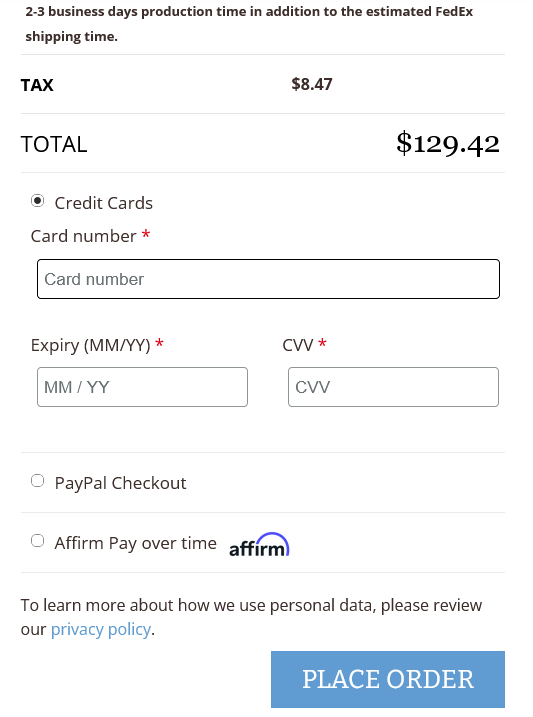
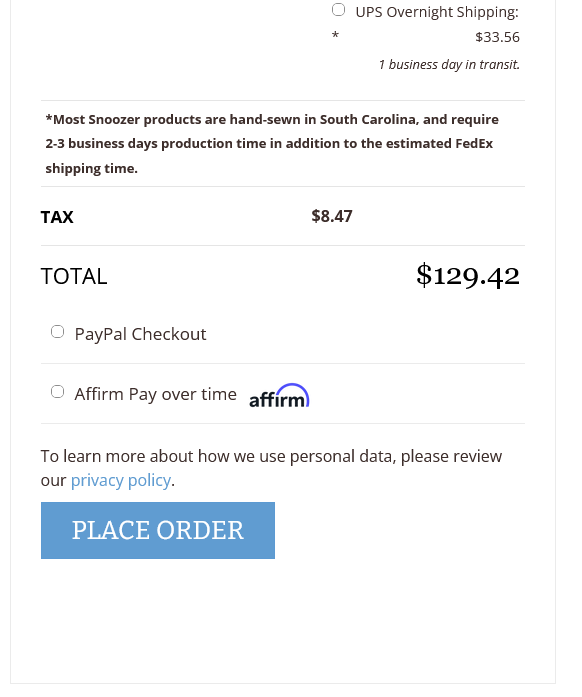
After selecting a shipping method, you should see fields for your credit card information, plus options for PayPal Checkout, Affirm Pay over time, and either Apple Pay or Google Pay if you’re on a mobile device.
Rarely, the Credit Card fields will fail to load. Please take a look at these images, one showing the form when it loads correctly (first) and one where it fails to load the Credit Card fields (second.)
If the credit card fields don’t appear when you view the page, you can try to refresh/reload the page.
If that doesn’t fix it, your browser may be preventing certain JavaScript code from running. This can be a privacy or security precaution, but it can also interfere with normal behavior on some websites, such as loading these fields.
If refreshing/reloading the page doesn’t work, please see our instructions at the bottom of this article.
I’ve Tried Refreshing/Reloading the Page, But I’m Still Having a Problem
If refreshing/reloading the page hasn’t fixed your problem, there may be a deeper problem with your browser or device settings or cache.
Option: Try a Different Browser or Device
You can try using a different web browser (Google Chrome, Microsoft Edge, Mozilla Firefox, Apple Safari) or a different device. (Desktop PC/Mac, laptop, tablet, smartphone.) Rather than clearing your cache, sometimes just using a different browser or device is the fastest way to finish your shopping.
Option: Checkout as a Guest Using PayPal
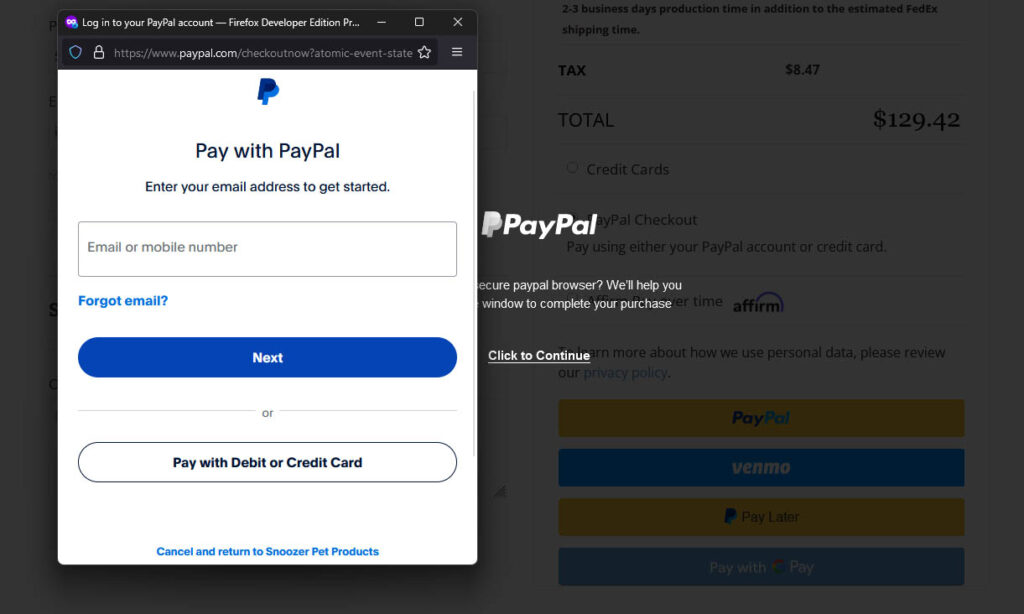
If the credit card fields don’t appear, but the PayPal Checkout option is available, you can still check out using a credit card. Click on PayPal Checkout, then click the yellow PayPal button. A new window to PayPal will pop up, prompting you to either enter your email address (to log into PayPal) OR to “Pay with Debit or Credit Card.” Click this button, enter your email, and you can check out as a guest through PayPal.
If you do not see the PayPal buttons appear when you click “PayPal Checkout,” then the same issue that is preventing the credit card form fields from appearing is also preventing the PayPal buttons from appearing, and you won’t be able to use this method.
Option: Clear Your Browser Cache
You can also try resolving the problem by clearing your browser cache. Your browser cache stores copies of certain files so that it doesn’t have to redownload them, even when you refresh a page, but sometimes these can cause problems if the cached files are outdated or damaged. Browsers sometimes call cached fileds “website data,” separate from cookies, another kind of file your browser stores. When you clear cached files or cookies for a website, you may need to log into that website again.
- How to Clear Cache on Google Chrome
- How to Clear Cache on Microsoft Edge
- How to Clear Cache on Mozilla Firefox
- How to Clear Cache on Apple Safari for iPhone or iPad
- How to Clear Cache on Apple Safari for Mac
Option: Disable Your Ad Blocker
Although we don’t serve advertisements on our website, ad blockers can prevent certain JavaScript files from loading. Unfortunately, this can sometimes include our credit card form fields. Try disabling your ad blocker for our site and refreshing/reloading the page. After you finish checking out, you can feel free to turn your ad blocker back on again.
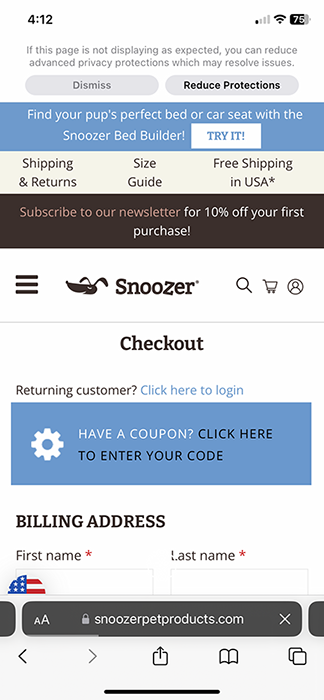
Option: iPhone / iPad-Specific Trick
Scroll to the top of the page, then pull down even further.
This will trigger a spinning icon as the page reloads.
If you keep pulling down, a message will appear asking if you wish to reduce “advanced privacy protections” to try to resolve issues.
Click “Reduce Protections” and the page will reload.
If you’re using an iPhone or iPad,
start by trying this.
Still Having Problems?
You can also place an order over the phone!
If none of the above tips resolved your problem, please contact our customer service team and they can take your order by phone. We sincerely apologize for any inconvenience you have experienced. We know website issues can be very frustrating and irritating.
If you would like to help us identify and resolve your issue for the future, please tell our customer service representative exactly what you experienced, whether it matched one of the scenarios described above or something unique. We are always making changes to improve our website and help avoid customer issues, and our tech team is grateful for any feedback and/or screenshots you can send our way.
We appreciate your business—Thank you for shopping with Snoozer!